Switching from QuickBooks Desktop
QuickBooks Desktop is winding down, and Intuit is steering users to a QuickBooks Online subscription. Doric is the other option: a fast, local app where your books live in a file you own, with no monthly fee. This guide gets your existing company out of QuickBooks and into Doric, chart of accounts and history intact.
What you'll export
QuickBooks won't hand over its own company file (the .QBW is proprietary),
so Doric builds your books from two ordinary exports QuickBooks can produce:
- A Lists file (
.IIF) — your chart of accounts and your payee lists (vendors, customers, employees, other names). - A Journal report exported to CSV/Excel — every transaction, with both sides of each posting.
Between them, Doric can rebuild your accounts, your payees, and your full already-categorized transaction history.
.IIF, or want it as plain spreadsheets? Our free
IIF to CSV converter splits it into one CSV per list
(accounts, vendors, customers…) right in your browser — handy for a look before you
import, though for the actual migration the steps below bring everything in at once.
Step 1 — Export your lists (.IIF)
In QuickBooks Desktop: File → Utilities → Export → Lists to IIF Files. Check these lists:
- Chart of Accounts
- Customer List
- Vendor List
- Employee List
- Other Names List
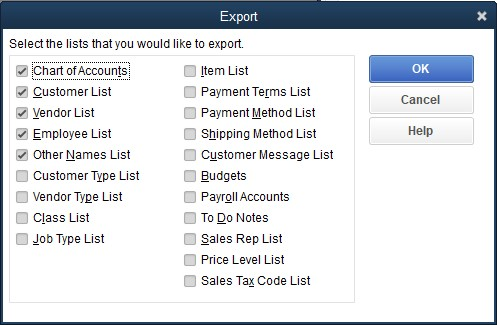
Save the .IIF file somewhere you'll find it. This is where your account
types, sub-account hierarchy, and payee details (including 1099 flags and tax IDs) come
from.
Step 2 — If you use sub-accounts, turn on full paths
This one's minor and only matters if you have sub-accounts that share a name — say an Insurance under both Auto and Health. If that's not your setup, skip to Step 3.
If it is: go to Edit → Preferences → Accounting → Company Preferences and uncheck “Show lowest subaccount only.” The name is backwards — with it checked (the default), reports show only the last piece of a sub-account (just Insurance, not Auto:Insurance), and Doric can't always tell two same-named accounts apart. Unchecked, the report carries the full path and everything lines up.
Step 3 — Export your transactions (Journal report)
Open Reports → Accountant & Taxes → Journal. Then:
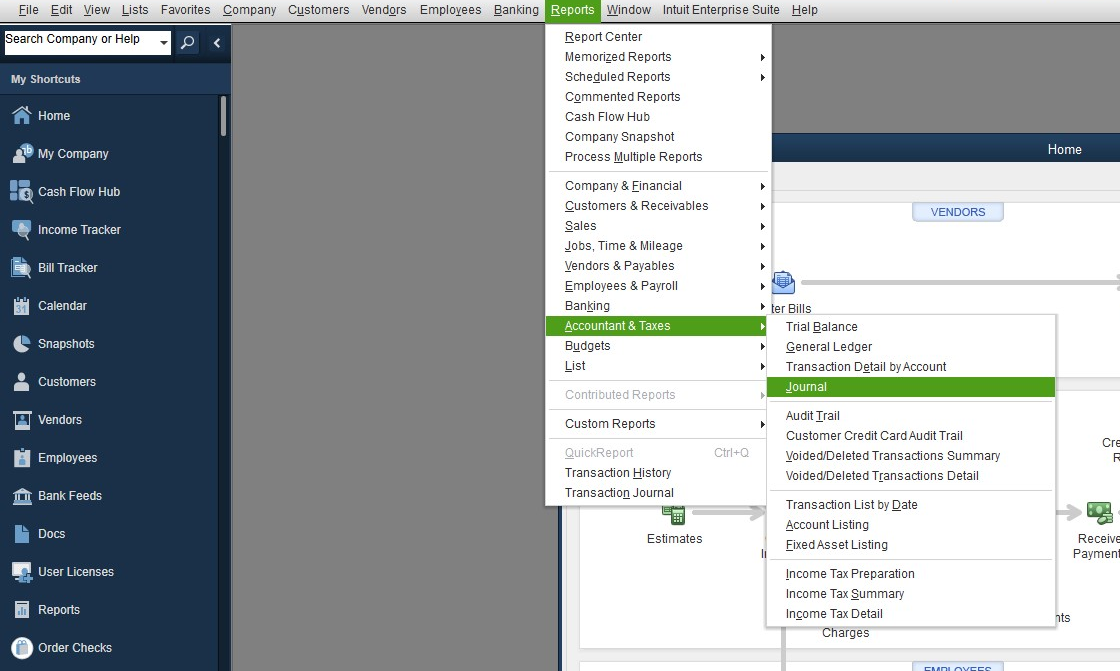
- Set the date range from your earliest transaction through today, so you capture the whole history.
- Export the report to Excel / CSV.
Optional: to carry cleared status across, add a Clr column
before exporting (Customize Report → Display). Doric then marks those
transactions cleared in your register — both QuickBooks' reconciled
(X) and cleared (*) marks come in as cleared. Without the
column, everything imports uncleared. Either way, past reconciliation statements
aren't rebuilt; you reconcile forward in Doric from your next statement.
Step 4 — Bring it into Doric
Start a new, empty company for this — a QuickBooks migration builds a whole set of books, so it belongs in fresh books, not on top of data you already have.
Click the Import icon
in the left sidebar and open the From QuickBooks tab. Choose your
Lists file (the .IIF) and your Transactions
file(s) (the Journal CSVs — you can pick several), then click
Preview. Doric shows what it found: your accounts and how each maps to a
Doric type, a count of payees and transactions, and a sample of the transactions so you
can spot-check before committing. When it looks right, click Import into this
company.
Everything comes in already categorized and reviewed — your history lands in the register as finished books, not in a triage queue. Afterward Doric shows a report of exactly what it created and anything that needs a second look.
What comes over
- Chart of accounts — with QuickBooks' 15 account types mapped to Doric's five, and your sub-account hierarchy preserved.
- Payees — vendors, customers, employees, and other names, with addresses, tax IDs, and 1099 eligibility where QuickBooks had them.
- Transactions — your full history, each split posted to the right account and pre-categorized.
- Transfers — money moved between your own accounts (including credit-card payments) comes in as a proper Doric transfer, counted once.
- Balances — because you're importing history from the beginning, your balances tie out on their own, opening-balance entries and all.
What doesn't — and how Doric handles it honestly
Doric is a bookkeeping app, not an all-in-one, so a few QuickBooks features have no home here. Nothing is silently dropped — the import report tells you what happened.
- Open invoices & bills — Doric can create and track customer invoices and vendor bills, but the QuickBooks import does not recreate those open documents. Paid ones already net into income and expense, so they come over fine. Unpaid ones at your switch-over arrive as a balance on your A/R or A/P account; recreate any documents you still need to track after the import. Doric keeps the QuickBooks document number in the transaction's reference so the paper trail survives.
- Cost of Goods Sold — imported as a normal expense; your profit & loss still nets correctly, it just won't sub-total COGS separately.
- Reconciliation history — the per-transaction cleared mark comes across (if you added the Clr column), but past reconciliation statements themselves don't; you reconcile forward in Doric.
- Multiple currencies — Doric is single-currency. Export in your home currency; foreign-currency detail and exchange rates aren't carried over.
- Items & inventory, classes, jobs, payroll detail, budgets, memorized transactions, attachments — not modeled in Doric. The transactions that used them still post to the right accounts; the extra structure is what's left behind.
Coming from QuickBooks Online?
The same approach works — QuickBooks Online exports a General Ledger and a Chart of Accounts you can feed into Doric. A dedicated QuickBooks Online path is on the way; in the meantime, email us and we'll walk you through it.
Where to go next
Once your company is in, get comfortable in The Register, see how money moving between your accounts works in Transfers, and run a profit & loss or balance sheet in Reports.