Theme editor
Doric's colors are yours to change. Switch to a dark theme, warm the palette, or tune every color by hand — the app updates live as you go, so you can see the result before you commit.
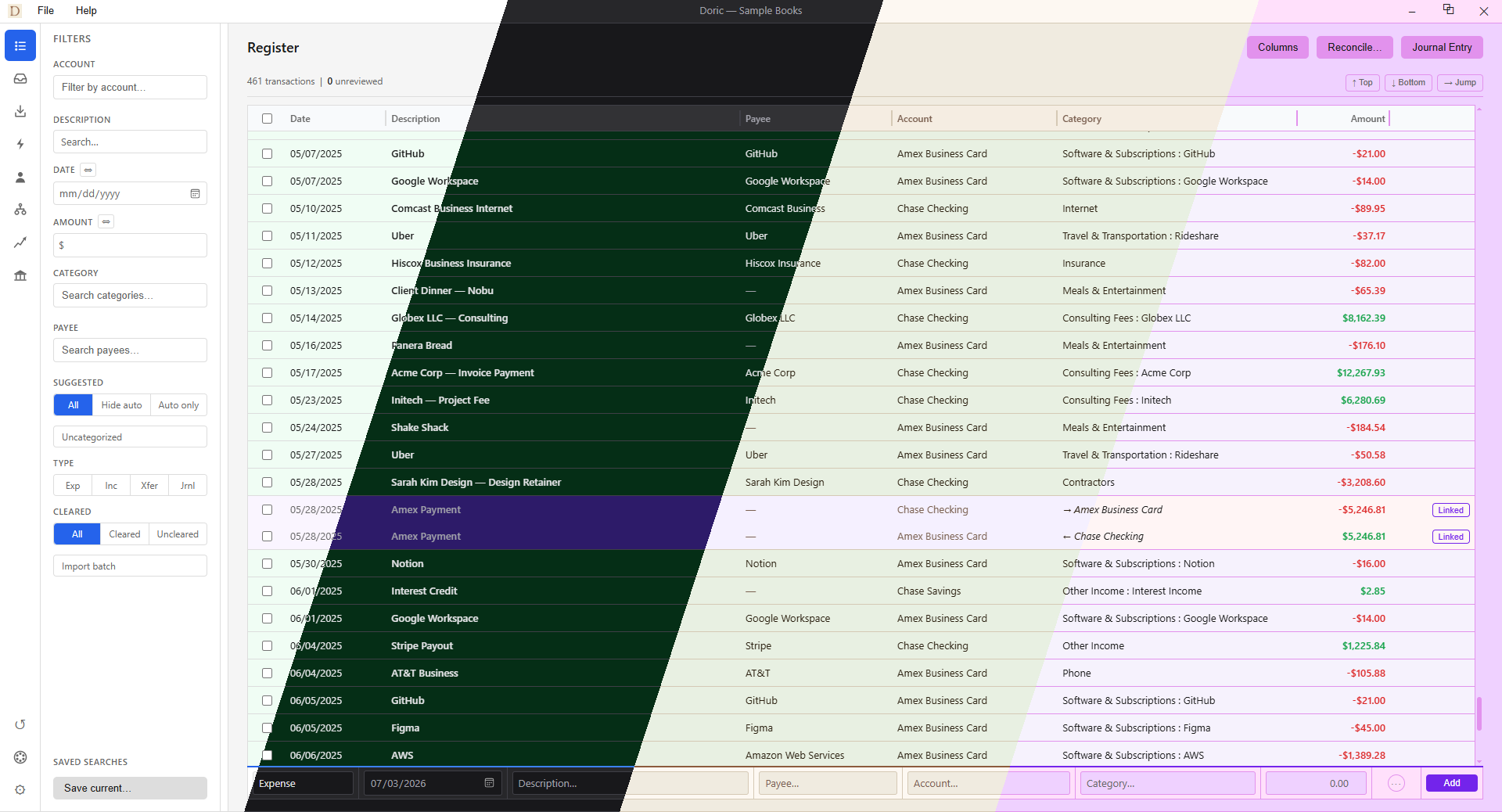
Getting there
Click the Theme icon at the bottom of the left sidebar. A Theme panel slides in from the side; close it with the ✕ in its header when you're done. Everything you change applies instantly and is remembered the next time you open Doric.
Start from a preset
The fastest way to a new look is a Preset. Doric ships three:
- Default — the light theme Doric starts with.
- Dark — a dark palette, easy on the eyes at night. It also switches the window's title bar to dark to match.
- Warm — a softer, paper-toned light theme.
Click one to apply it. A preset is a great starting point even if you plan to customize — apply the closest one, then adjust from there.
Fine-tuning colors
Below the presets, the panel groups every color into sections. Click a color swatch to open your system color picker; the app updates as you choose. The groups:
- Accent — the highlight color used for buttons, links, and selections. Doric derives its lighter and darker shades from the one accent you pick.
- Core — Background, Surface, Border, Text, and Muted: the foundation the rest of the app sits on.
- Surfaces — Raised, Hover, and Row hover shades for panels and interactive rows.
- Row States — the register's row tints: Suggested, Uncategorized, Categorized, and Transfer.
- Column Highlights — optional background tints for the Date, Description, Amount, and Credit / Misc columns.
- Amounts — the Positive and Negative colors used for money in and money out.
For the Row States and Column Highlights, you pick a single background color and Doric works out the matching hover and text shades automatically, so they stay readable whether your theme is light or dark.
Saving your own themes
Landed on a look you like? Type a name in the Preset name… box under My Presets and click Save. Your theme joins the list, one click away whenever you want it back. Reusing an existing name overwrites that preset; the ✕ next to a saved preset deletes it.
Where to go next
The register's row and column colors are the ones you'll see most — a good place to spend your tuning. From there, explore the rest of the app in Getting started.